With the changeover that has been happening at several sites, we wanted to provide a possible solution for continuing issues with LittleBird connectivity after the changeover. Follow these steps. (Your panel/solution may look slightly different!)
First - Where the arrow is pointing to, this is the data cable (in this case its blue, but it can also be black, grey, or yellow) that provides internet to the LittleBird panel.
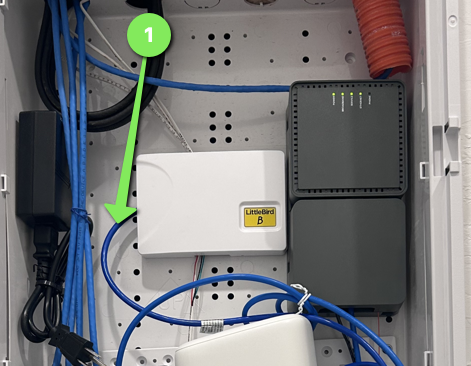
Trace that back to where its plugged in at the Cox router, and unplug it. (To unplug, there's a little tab on the cable, press that in, and then pull out gently.)
Second - find the auxiliary switch - it'll look like this:
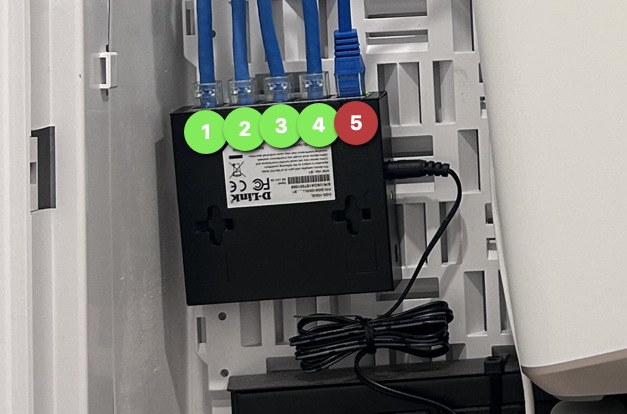
There will be multiple cables plugged into this. You can see the picture above, that the cable plugged into 5 is different. That different one (labelled 5 and in red in the image above) is the connection to the Cox router. Do NOT unplug this. Yours may be in a different port, but usually its 1 or 5. Unplug any other cable that has no blinking lights. Set this aside and leave it dangle.
Third: The cable that you unplugged in Step 1 - plug into the space where you just removed the cable in step 2. You'll feel a snap as the tab engages.
Finally: Reboot the LittleBird panel by unplugging the power supply for 15 seconds as indicated by the green arrow below, then plug it back in.
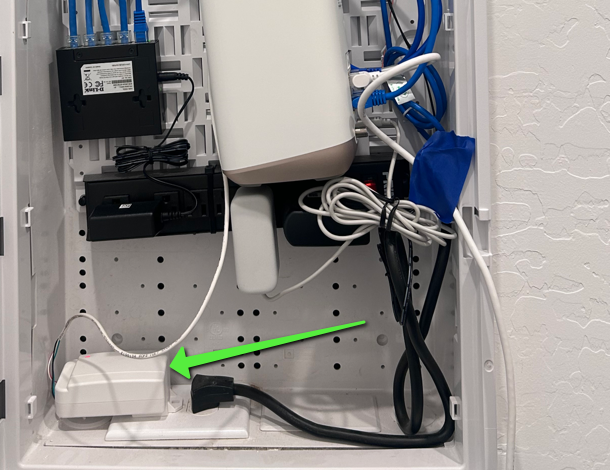
Once you've done that - take a picture of the entire enclosure, and send that to the LittleBird technician you've been working with so we can verify that the panel is back online.
Was this article helpful?
That’s Great!
Thank you for your feedback
Sorry! We couldn't be helpful
Thank you for your feedback
Feedback sent
We appreciate your effort and will try to fix the article